
Troubleshooting Unit Visibility

If units fail to appear in the unit table during runtime, one of the unit’s property values likely falls outside the current filter range. Follow this procedure to isolate the specific filter causing the issue.

1. Isolate the Filtering Logic
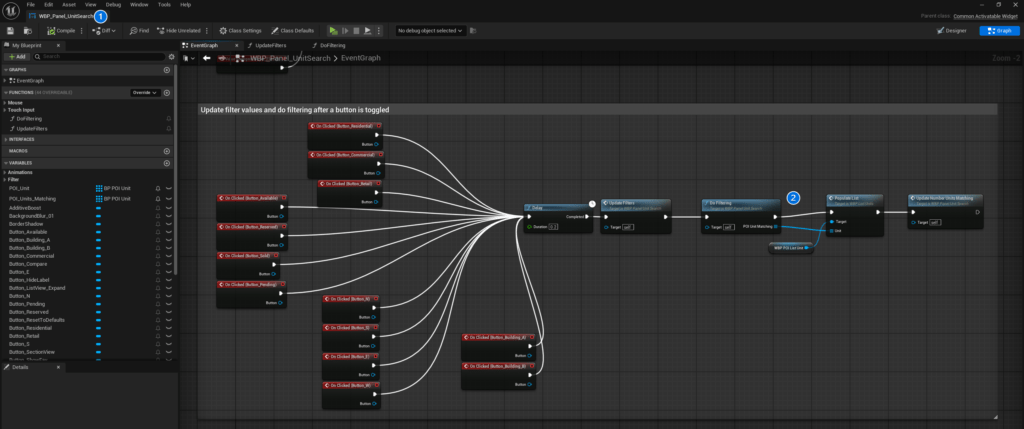
  1. Open the WBP_Panel_UnitSearch Widget Blueprint.
  2. Navigate to the Graph view and locate the DoFiltering function.

2. Iterative Testing
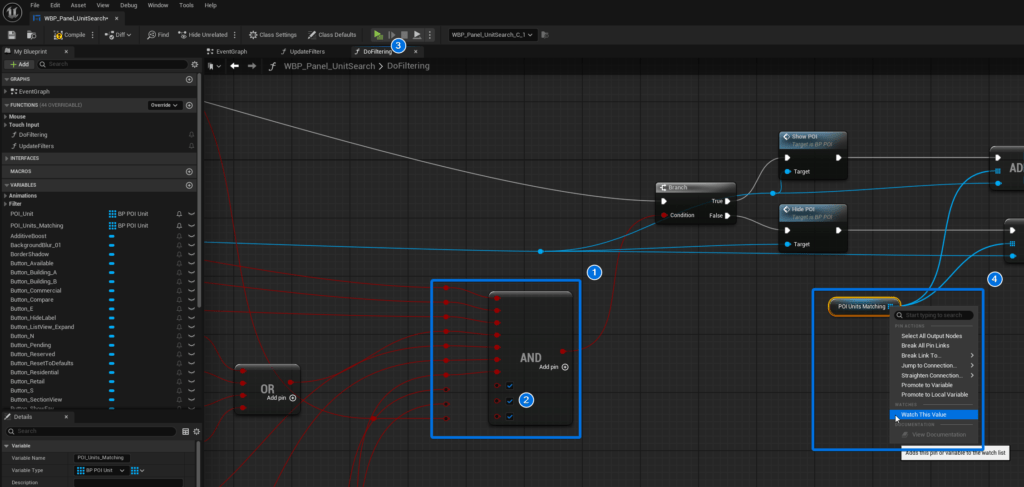
  1. Identify the main AND boolean node responsible for aggregating filter conditions.
  2. Disconnect all input pins on this AND node and then manually set the disconnected inputs to True (checked) to bypass the filters temporarily.
  3. Play in Editor (PIE) to confirm that all units now appear in the table.
  4. While the project is running, use the Blueprint Debugger to select the active WBP_Panel_UnitSearch instance. Add the MatchingUnits array to the Watch list to monitor real-time data population.
  5. Reconnect one filter pin to the AND node and play the session again to verify if units are still visible. Repeat this process, reconnecting one pin at a time, until the units disappear. The last connected pin indicates the parameter causing the conflict.
related documentation

Configuring Project Settings

Configuring Project Settings To ensure AVE II functions correctly, you must verify specific project settings. These configurations establish the communication backbone between the UI and your Blueprint logic. Note: The BP_AVE_GI class is essential for handling global communication and persistent data between the UI and gameplay elements.

Read more >

Getting Started

Welcome to AVE II, a real‑estate visualization experience built in Unreal Engine 5. This guide helps you quickly understand the core systems, navigation, and workflow so you can begin integrating AVE II into your project or exploring its features. Overview AVE II provides an intuitive, high‑quality exploration system designed for

Read more >

POI Basics & Custom Tags

Get started with interactive navigation in AVE II. This beginner-friendly guide covers the essentials of placing BP_POI_Generic actors, customizing info panels with text and images, and organizing your locations into simple categories using tags.

Read more >

Framework

This section explains the core structure of AVE II. It covers which systems manage data, how responsibilities are split up, and how different parts of the project communicate with each other. These pages are designed to help you understand where to modify or add Blueprint logic. They explain which classes

Read more >

Game Instance (BP_AVE_GI)

The Game Instance (BP_AVE_GI) acts as the central mediator in AVE II. It owns a persistent runtime state, coordinates communication between systems, and ensures that gameplay logic, UI, and data remain decoupled. Roles and Responsibilities The BP_AVE_GI manages high-level orchestration across the framework. Its primary duties include: Implementation Examples The

Read more >