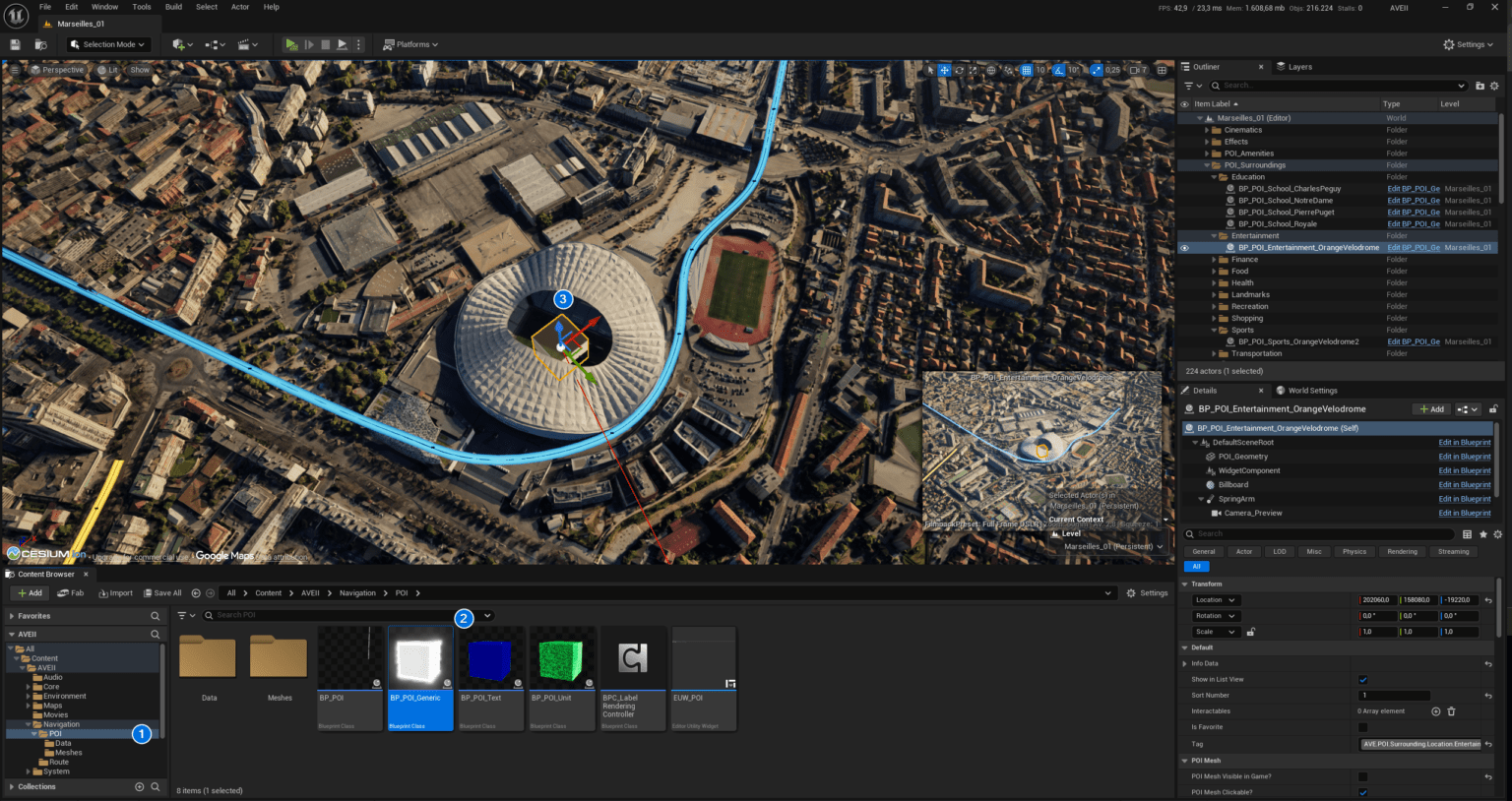
📂 Location:
AVEII > UI > Menus
1. Role & Architecture
The WBP_Game_Menu serves as the primary container for the user interface during the active session. Structurally, it is a Canvas Panel that holds various independent sub-widgets (Panels), such as toolbars, search lists, and detail views.
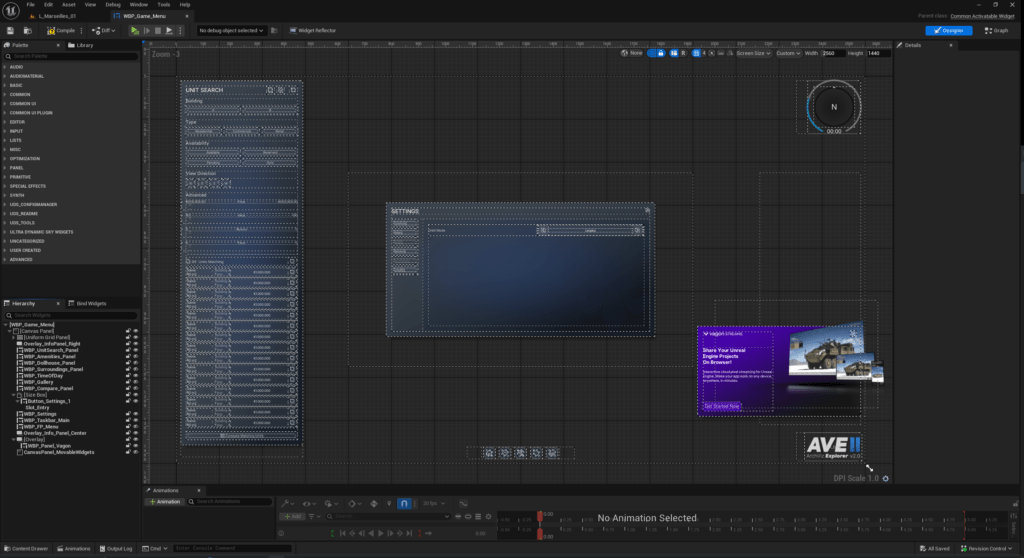
Design Philosophy: Decoupled Logic
The graph for this menu contains minimal animation or internal logic for the specific panels it holds.
- The Container Pattern: The Game Menu acts strictly as a Controller. It decides which panels should be visible, but it does not dictate how they appear or disappear.
- Why use this approach? This adheres to the professional principle of Separation of Concerns.
- Maintainability: It prevents the Main Menu from becoming a massive “God Object” full of spaghetti code.
- Scalability: It allows designers to iterate on the animation or functionality of a specific panel (e.g., changing the slide-in animation of the
WBP_Amenities_Panel) without touching the Game Menu logic or risking bugs in the main controller.
2. Mode Management
The application state is driven by the AVE Mode system. The Game Menu listens for state changes to adapt the interface dynamically.
- Event Hook:
OnModeChanged(Event Dispatcher from Game Instance). - Logic: When the mode changes (via the
E_AVE_Modeenum), the menu switches context. For example:- Surroundings Mode: Activates
WBP_SurroundingsPanel. - Amenities Mode: Activates
WBP_Amenities_Panel. - Unit Search Mode: Activates
WBP_UnitSearch_Panel.
- Surroundings Mode: Activates
3. Panel Management System
To manage the visibility of these overlapping tools efficiently, we utilize a centralized registry and function.
The TogglablePanels Registry
During the Construct event, we manually assign the specific UI panels existing on the Canvas to a local array variable called TogglablePanels. This creates a registry that allows us to iterate through UI elements programmatically later.
Function: ActivatePanels
This is the core utility for showing and hiding UI layers.
- Inputs:
PanelsToActivate(Array of User Widget Objects)bDeactivateOtherPanels(Boolean)
- Logic:
- Clean Slate: If
bDeactivateOtherPanelsis true, the function iterates through theTogglablePanelsregistry and deactivates every widget found. - Activate Target: It then takes the specific widgets passed in
PanelsToActivateand calls their activation logic. This ensures that switching modes cleanly wipes the slate before presenting new tools, preventing UI clutter.
- Clean Slate: If
4. Contextual Information (Info Panels)
The Game Menu also acts as the host for dynamic world information, such as details about a selected Point of Interest (POI).
Event: ActivateInfoPanel
This custom event bridges the 3D world and the 2D UI.
- Trigger: Called when a user selects an object in the viewport.
- Data Source: It retrieves data from the
BPC_InfoPanelHandlercomponent attached to the selected actor. - Visualization: Based on the data received, it initializes and displays the
WBP_Info_Panel_Base.- Dynamic Templates: The system checks the handler to decide which specific template layout to load into the Info Panel, allowing different types of objects (e.g., Apartments vs. Parks) to display unique data structures.